Imperial Gaming Login Problems: Fix Account Access Errors on Mobile
Imperial Gaming Login Problems: Fix Account Access Errors on Mobile
When you're trying to place a bet or spin a slot and you can't access your Imperial Gaming account, every minute counts. Login errors on mobile can happen for several reasons—from simple password mistakes to verification issues or app glitches. This guide walks through the most common Imperial Gaming login problems and how to fix them quickly on Android or iOS.
This content is for players aged 21 and over only. If you're having trouble controlling your play or spending, reach out to a support service.
'Invalid Username or Password' Error: Resetting Your Imperial Gaming Password
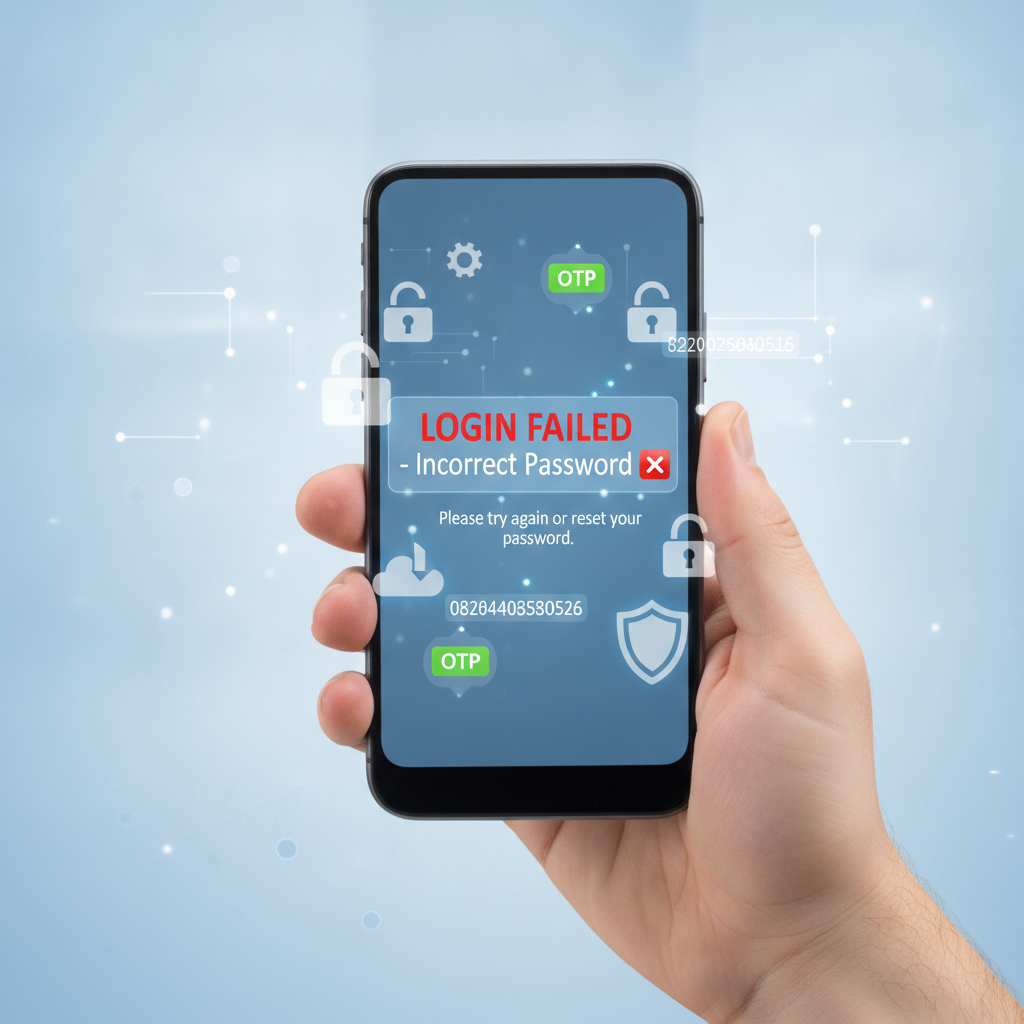
The "invalid username or password" message is the most frequent roadblock. Even if you're certain you typed correctly, autocorrect, saved passwords, or a recent password change can cause mismatches.
Step 1: Double-check your username or mobile number
Imperial Gaming typically asks for your registered mobile number or email as your username. Make sure you're entering the exact format you used during sign-up. If you registered with a Philippine mobile number, include the correct prefix (e.g., 09XX XXX XXXX). Extra spaces or dashes can trigger an error.
Step 2: Reset your password
On the Imperial Gaming login screen, tap "Forgot Password" or "Reset Password." You'll be asked to enter your registered mobile number or email. A password-reset link or one-time PIN (OTP) will be sent via SMS or email, usually within one to three minutes.
- SMS OTP: Check your messages app. If the code doesn't arrive, confirm your phone number is correct and that you have signal or mobile data. Some networks delay promotional or automated SMS; wait five minutes and request a new code if needed.
- Email link: Check your inbox and spam folder. The reset email comes from an Imperial Gaming domain or their platform provider. Click the link and create a new password. Use at least eight characters, mixing letters and numbers.
Step 3: Log in with your new password
Once you've set a new password, return to the Imperial Gaming app or mobile site and enter your username and the new password. Avoid copying and pasting if your clipboard has extra spaces.
If the reset link never arrives or the OTP field won't accept your code, contact Imperial Gaming customer support through live chat or Viber. Have your registered mobile number and a photo of your ID ready to verify ownership.
'Account Locked' or 'Suspended' Messages and What Triggers Them
Seeing "your account has been locked" or "account suspended" can be alarming, but these flags are usually temporary and security-related.
Common triggers for account locks
- Multiple failed login attempts: Entering the wrong password five or more times in a row can auto-lock your account for 15–30 minutes to prevent unauthorized access. Wait out the cooldown period, then try again with the correct credentials or reset your password.
- Incomplete ID verification: Philippine online casinos and sportsbooks require identity checks. If you skipped uploading a valid government ID, selfie, or proof of address, Imperial Gaming may restrict account access until verification is complete. Log in on a desktop browser if possible, or contact support to submit your documents via email or the app's upload portal.
- Payment disputes or chargebacks: If a GCash, Maya, or bank deposit is flagged, reversed, or under investigation, the platform may temporarily suspend your account. This can happen if your e-wallet transaction is declined after funds were credited, or if a bank raises a fraud alert. Resolve any payment holds with your provider and follow up with Imperial Gaming support.
- Terms-of-service violations: Using a VPN, sharing accounts, placing duplicate bets from multiple devices, or other breaches can lead to suspension. Review the email or in-app message for details. Some suspensions are permanent; others can be lifted after clarification.
How to unlock your account
- Wait for the auto-unlock: If it's a login-attempt lock, simply wait 30 minutes and retry.
- Complete verification: Submit any missing KYC documents. Typical turnaround is one to three business days.
- Contact support: Use live chat, Viber, or the support email listed in the app. Provide your registered mobile number, account username, and a brief explanation. Response times range from a few minutes to 24 hours, depending on volume.
Do not create a second account while waiting; duplicate accounts can result in both being closed and forfeited balances.
Two-Factor Authentication or OTP Issues on Android and iOS
Imperial Gaming may require a one-time password (OTP) or two-factor authentication (2FA) code when you log in from a new device or after clearing app data. OTP problems are common on mobile networks in Metro Manila and the provinces, especially during peak hours.
OTP not arriving
- Check your signal and mobile data: Switch between Wi-Fi and mobile data. If you're in a low-signal area, move closer to a window or try again after a few minutes.
- Verify your registered number: Confirm the last four digits displayed match your current SIM. If you changed numbers or swapped SIMs, update your account details via desktop or contact support.
- Request a new code: Most login screens let you tap "Resend OTP" after 60 seconds. Don't request more than three times in rapid succession; some systems throttle delivery if they detect spam-like behavior.
- Check for carrier blocks: Globe, Smart, and DIGI sometimes block automated SMS from unrecognized senders. Contact your telco to whitelist transactional messages or temporarily disable SMS filters.
OTP expired or "invalid code" error
OTP codes typically expire in three to five minutes. If you waited too long or the system clock on your phone is off, the code won't validate. Sync your phone's date and time to automatic (Settings → Date & Time → Set Automatically on Android; Settings → General → Date & Time → Set Automatically on iOS). Request a fresh OTP and enter it immediately.
App-based 2FA (Google Authenticator or Authy)
If you enabled app-based two-factor authentication and lost access to your authenticator app, you'll need to contact Imperial Gaming support to disable 2FA. Provide proof of identity—government ID and a selfie—and explain the situation. Recovery can take one to two business days.
Clearing App Cache or Using a Different Browser to Fix Login Loops
A "login loop" is when you enter your credentials, the screen flashes or loads, then kicks you back to the login page without an error message. This glitch often stems from corrupted app cache, outdated software, or browser cookie conflicts.
Clearing cache on the Imperial Gaming Android app
- Open Settings on your Android phone.
- Tap Apps or Application Manager.
- Find and tap Imperial Gaming in the list.
- Tap Storage, then Clear Cache. (Do not tap Clear Data unless you're willing to log in fresh and lose saved preferences.)
- Restart the app and try logging in again.
If that doesn't help, check the Google Play Store or the official Imperial Gaming website for an APK update. An outdated app version can cause compatibility issues, especially after the platform's backend is updated.
Clearing cookies and cache in mobile browsers (Chrome, Safari)
If you're using the Imperial Gaming mobile site instead of the app:
- Chrome (Android): Tap the three dots → Settings → Privacy and security → Clear browsing data. Select Cookies and Cached images, choose "All time," then tap Clear data.
- Safari (iOS): Go to Settings → Safari → Clear History and Website Data. This signs you out of all sites, so have your passwords handy.
After clearing, revisit the Imperial Gaming mobile site and log in. If the loop persists, try a different browser—Firefox, Edge, or Brave—to rule out a browser-specific bug.
Use incognito or private mode
Open a private browsing window (Incognito in Chrome, Private in Safari). Navigate to the Imperial Gaming login page and sign in. If it works here but not in normal mode, a browser extension or saved form data is interfering. Disable extensions or reset site settings for the domain.
Reinstall the app
As a last resort, uninstall the Imperial Gaming app, restart your phone, then download and install the latest APK from the official site or the Play Store (if available). Reinstalling clears all local data and often fixes deep-seated glitches.
21+ Only; Secure Your Account and Gamble Responsibly
This guide is intended for players aged 21 and over. Online casino and sports betting are adult activities, and Imperial Gaming enforces age verification.
Keep your account secure:
- Use a strong, unique password that you don't share across multiple sites.
- Enable two-factor authentication if Imperial Gaming offers it.
- Never share your login credentials via text, email, or with friends.
- Log out when using shared or public devices.
- Regularly review your transaction history for unauthorized deposits or withdrawals.
Gamble responsibly:
Set deposit limits, take breaks, and only wager what you can afford to lose. If you feel gambling is becoming a problem, reach out to a support organization or use any self-exclusion tools Imperial Gaming provides.
Still can't log in?
If you've tried every step above and still see errors, contact Imperial Gaming customer support directly. Use the in-app live chat, official Viber channel, or email listed on their website. Have your registered mobile number and a valid ID ready to speed up verification. Most login issues are resolved within a few hours once support is involved.
By following these troubleshooting steps—resetting your password, understanding account locks, fixing OTP delivery, clearing cache, or switching browsers—you'll get back into your Imperial Gaming account quickly and get on with your play.